
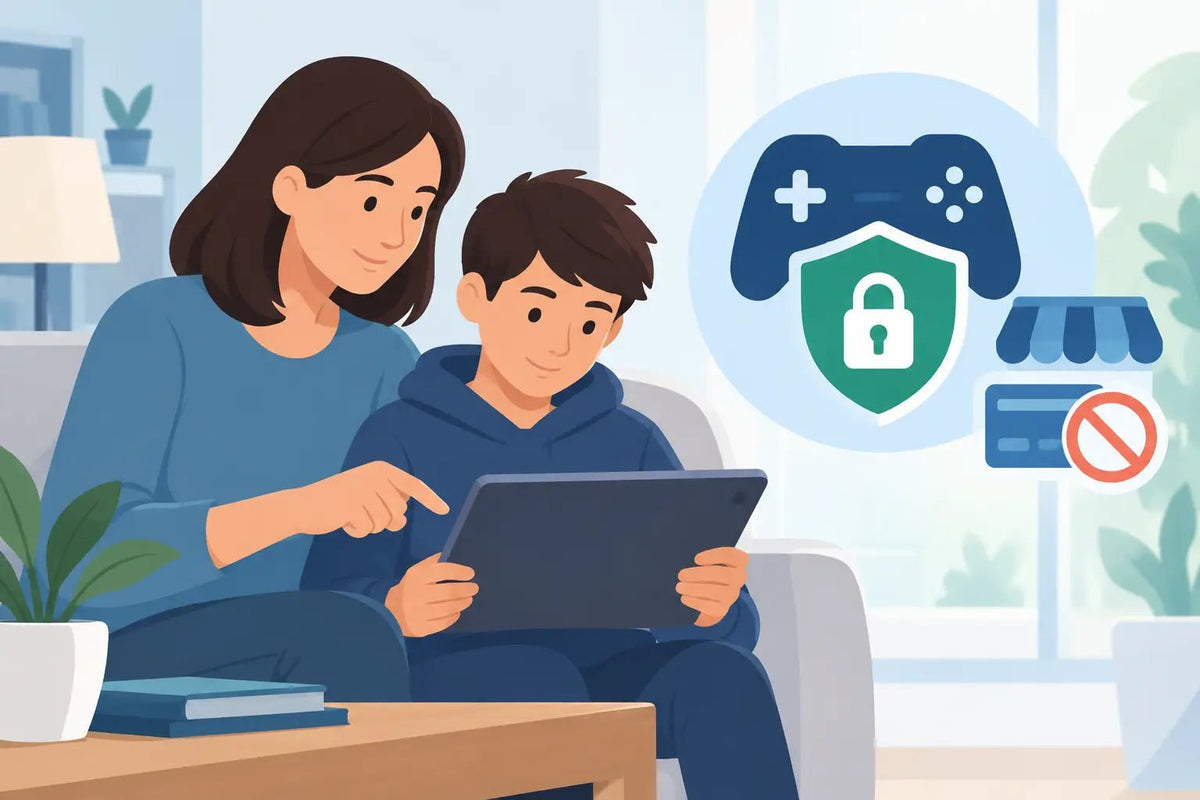
A rare pet drops into a shop, a limited skin is about to disappear, and your child wants to buy it now. That pressure is real in gaming, especially in Roblox communities where items can feel like a huge part of the fun. This parents guide gaming purchase controls helps you keep purchases clear, approved, and stress-free without turning every game into an argument.
The goal is not to ban every digital purchase. It is to make sure your child understands what they are buying, what it costs, and when they need to ask first. A few smart settings and a simple family plan can stop surprise charges while still leaving room for the items they are genuinely excited about.
Start With One Rule: No Saved Payment Without Permission
The fastest way to prevent accidental spending is also the simplest: do not leave a credit card, debit card, or payment app freely available on a child’s gaming device. If a payment method is saved, a kid can often move from “I’m just looking” to checkout in seconds.
For younger players, consider removing saved cards entirely and using gift cards or prepaid balances instead. This puts a hard ceiling on spending. If the balance is $20, the purchase cannot quietly become $60 after a few extra add-ons.
For teens who buy more often, saved payments can be workable, but pair them with a password, biometric approval, or a requirement to enter the card security code. Convenience is nice. A quick pause before checkout is better.
Set Controls Where the Money Actually Moves
Gaming purchases can happen in more than one place. Your child might buy currency through a console store, a mobile app store, a game platform, or a third-party digital marketplace. Controls only work when they cover the checkout path your family actually uses.
Use Family Settings on Consoles and Devices
Most major consoles, phones, tablets, and PCs offer family accounts with purchase approval options. Look for settings that require parent approval before spending, restrict purchases by age rating, or set a monthly limit.
Turn on purchase notifications too. An alert after a purchase is not as strong as blocking it before checkout, but it helps you spot patterns fast. If three small purchases happen in one week, you can address it before it turns into a bigger bill.
Do not assume one setting protects every device. A child who cannot buy an item on the family console may still be able to buy it through a phone, tablet, or browser. Check the devices they use most, then check the accounts signed into them.
Separate Allowance Money From Household Money
A gaming budget works best when it is visible. You can use a monthly amount, money earned through chores, or a special occasion budget. The exact number depends on your family, but the rule should be easy to understand: when the gaming money is gone, it is gone until the next agreed date.
This teaches a valuable trade-off. A $10 cosmetic item may be worth it if your child plays that game every day. It may not be worth it if it takes the entire month’s budget and a favorite game event is coming next week. Letting kids make some of those choices builds better judgment than saying no to everything.
Explain What They Are Really Buying
Virtual purchases are not all the same. Some are purely cosmetic, such as skins, outfits, effects, and emotes. Others change gameplay through pets, weapons, boosts, currency, or limited collectibles. In trading-focused communities, an item may also have value because it is rare or hard to obtain.
That does not mean every rare item is a smart buy. Help your child ask three quick questions before checkout: Will I actually use this? Can I get it through normal gameplay? Is this price within my budget?
The answer may be yes, especially for an item they have wanted for a while. The key is separating a planned purchase from a panic buy caused by a countdown timer, a flashy sale, or friends saying everyone has it.
Create a Purchase Checkpoint
A short approval routine keeps the conversation calm. Instead of debating every item from scratch, agree on what your child needs to show you before buying. For purchases over your family’s chosen amount, that might mean the item name, the final price, the game it is for, and where it is being purchased.
For example: “I want this Adopt Me pet. It costs $8.99. I have $15 left in my monthly budget, and it is from a seller I checked with you.” That is a much easier conversation than “Can I buy something?” while a countdown is running.
You can also set a waiting rule. Small purchases may be approved right away, while larger purchases get a 24-hour pause. Waiting will not ruin most purchases, and it is a great test of whether the item is a real priority or just a quick rush.
Teach Safe Marketplace Habits, Not Just Spending Limits
Purchase controls protect your payment method. They do not automatically protect your child from scams. In-game item communities are full of tempting offers, fake giveaways, and people asking players to move chats or share account details.
Make these non-negotiable:
- Never share a game password, email password, verification code, recovery code, or login cookie.
- Never send an item or currency first because a stranger promises to pay afterward.
- Never trust a deal just because it appears in a chat message, video comment, or private server.
- Always check the final price, the exact game, and what will be delivered before paying.
Watch for Subscription and Currency Traps
One-time item purchases are easy to understand. Recurring charges are where families can get caught off guard. Premium memberships, battle passes with automatic renewal, monthly currency bundles, and free trials can all keep billing after the excitement of the first purchase fades.
Before approving anything that says “monthly,” “membership,” “auto-renew,” or “recurring,” decide whether it belongs in the regular gaming budget. Put the renewal date on a family calendar or set a reminder a few days before it renews. If the membership is no longer being used, cancel it before the next charge.
Game currency needs the same attention. Kids often see currency as points, not dollars, particularly when bundle sizes make the math less obvious. Ask them to tell you the real cash price before they buy. That tiny habit makes spending feel more concrete.
What to Do After an Unapproved Purchase
Stay calm first. If a child is afraid of getting in trouble, they may hide the next charge instead of asking for help. Review what happened together: Was a card saved? Was an approval setting off? Did they misunderstand a subscription or think game currency was free?
Then fix the gap. Remove the payment method, change the password that authorizes purchases, enable approval prompts, or adjust the budget. A consequence may be appropriate, but the bigger win is making sure the same mistake cannot happen again with two taps.
If the charge looks unfamiliar, investigate quickly through the payment provider and the store account. Check purchase histories before assuming it is fraud. Sometimes a game title, platform name, or currency purchase shows up on a statement differently than your child expects.
Give Kids Room to Make Smart Choices
Gaming items can be fun, social, and meaningful to players who care about collecting, trading, or showing off a hard-to-find look. Controls are not about making that excitement disappear. They are about putting a clear boundary around it so a cool item stays a cool item, not a surprise charge.
Set the rules before the next limited drop appears. When your child knows the budget, the approval process, and the safety basics, they can enjoy the hype and you can say yes with a lot more confidence.
Roblox Economies: Why Rare Items Gain Value
Virtual Marketplace Review for Smart Gamers